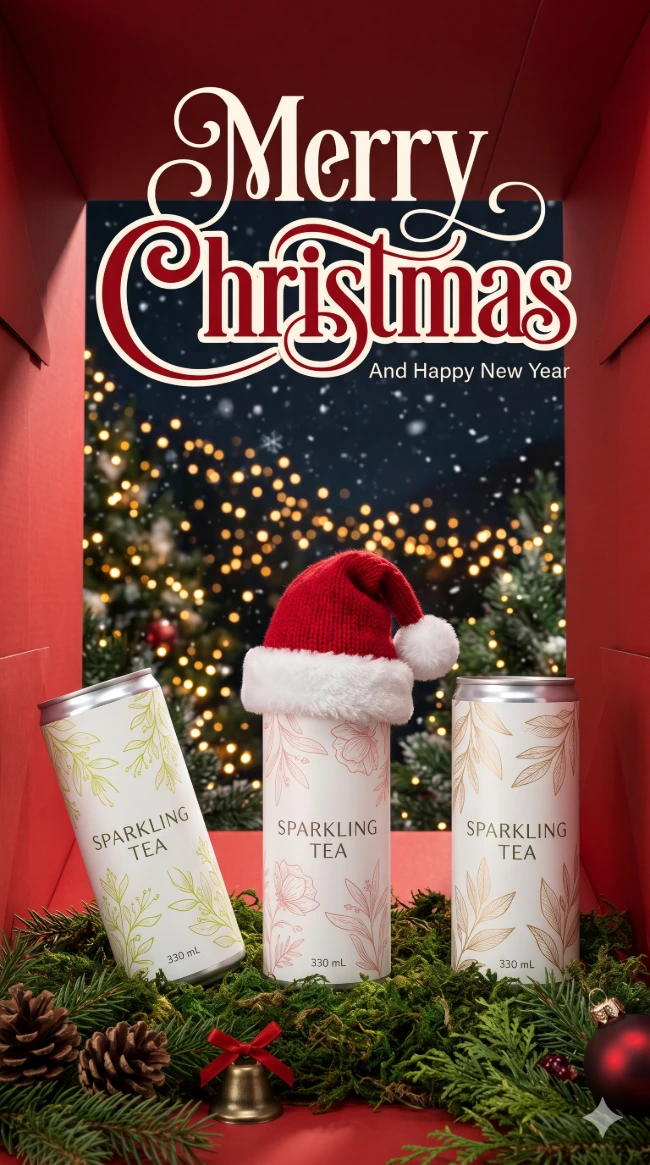
Three beverage cans inside an open red gift box with vintage Christmas lettering and golden lights.
Christmas beverage poster · Inside an open red gift box
Reference images and context
Use the sample as a gift-box composition reference; attach separate product images at your image service to preserve the can packaging. The master defaults to a square 1:1 ratio; change it in the advanced section. HyperDes only creates prompt text.
Think of a master prompt as the production brief for a film crew: your product is the lead, while composition, lighting, environment and materials tell the story around it. HyperDes templates help you prepare that brief and adapt it to your product and campaign.
Prompt too long? Try two steps
Separate context reading from the image request using two messages in the same conversation. Try Gemini, GPT, Dola or a similar assistant, depending on whether your version supports file reading and image generation.
Let the AI read the brief first
Choose a template, edit its fields and generate the prompt in HyperDes. Copy the result into a UTF-8 .txt file, attach it to a new conversation and send the message below. Review the summary to check that the AI has picked up the key requirements before continuing.
Read the attached master prompt to understand the context, composition, lighting and required constraints. Briefly summarize what must be preserved and tell me if any part was unreadable. Do not generate an image yet; I will send the images and the specific request in my next message.
Send your images and a specific request
In that same conversation, attach your product photo and any scene reference the template requires. Identify which image guides the composition and which shows the product to preserve, then state the poster format, occasion and your highest priorities.
Using the master prompt you have read, create a vertical 4:5 poster for this Christmas campaign. Use my attached product photo; preserve the packaging shape, logo and label colors. Follow the master prompt for composition and lighting, and leave clear space for a headline.
Why split the steps? The master prompt is the overall production brief; the image prompt gives the image tool its execution instructions. Some assistants may interpret or shorten the master before generating an image, depending on how the service works. With many requests at once, secondary details can be missed. Reading and confirming first helps you check the priorities before giving a clearer image request; the final image still needs review.
Quick workflow
Choose a template for the composition and mood you want, edit its fields and generate the prompt.
Use a short prompt directly with your reference images. For a long master, try the two steps above.
Inspect the output and request changes to one group of details at a time so you can judge the result.
Tips for more control
Assign image roles: label them “Image A: scene reference; Image B: my product”. Mention only the images you actually attach, especially when a master lists several references.
Set priorities: repeat 3–5 essentials such as the product, logo, composition, ratio and main color. If your new request differs from the master, say which part should change to avoid conflicting instructions.
Choose a ratio for the placement: 4:5 for portrait posts, 9:16 for stories and 1:1 for square posts. Check the downloaded dimensions because supported ratios and resolutions depend on the tool.
Check text and packaging separately: AI can misspell copy, distort logos or change label details. Consider requesting clear space and adding accurate text in design software.
Iterate in focused passes: for example, “Keep the composition and product; only reduce the background brightness”. In a long conversation or a new chat, resend the master or a checked summary along with the images you need.
If you hit a limit, ask the assistant to prepare a shorter image prompt, preserve your agreed priorities and list omissions for review. If it cannot read the whole file, split it into numbered sections and ask it to wait until all sections arrive.
Common questions
Does HyperDes generate the AI image here?
This page builds prompt text. Copy it into a service with image-generation features, or ask an assistant to prepare a shorter prompt for another image tool. File reading, image generation and limits depend on the service you choose.
Does a text file bypass prompt limits?
A text file makes a long master easier to share and manage. It still falls within the service’s file and context limits; ask the AI to confirm the important sections rather than relying on a successful upload alone.
Why can details still be missing after the AI reads the master?
Long requests can be interpreted differently, shortened or contain conflicting directions. Check the summary, repeat essential constraints and revise one group of details at a time. Two steps help you supervise the process; you still need to inspect the result before use.