IMAGE TRACE PROMAX · VECTOR WORKFLOW

Rebuild raster artwork into optimized, editable SVG paths

Image Trace Promax is a focused workflow for redrawing raster artwork as vector geometry. It reads color regions, follows boundaries, fits curves and exports real SVG paths — more than placing a bitmap inside an SVG. For logos, icons, flat illustrations and clear-edged artwork, drop an image, tune detail, compare, edit anchors and download the result in one loop.

RasterPathSVG

A focused loop from source artwork to editable vector geometry

Illustrator is a broad professional suite. HyperDes focuses on one job: bring in raster artwork, build paths, optimize them and make focused edits in one local loop. For common vectorization jobs, that means fewer context switches without opening a much larger system.

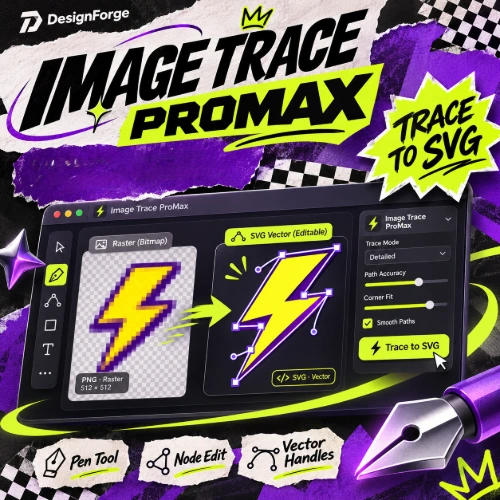
Image Trace Promax showing the original image beside an SVG reconstruction with editable anchors
Original artwork → editable SVG path geometry

Choose the right workspace for this trace pass

The two tools serve different jobs. HyperDes focuses on a raster-to-path pass you want to finish now; Illustrator fits a broader production suite workflow.

HyperDes · focused trace pass

Import → trace → compare → edit anchors → export in one local loop, without switching through several screens for a small correction.

  • Fits color regions and shared boundaries so neighboring paths stay aligned.
  • Filters speckles, removes redundant anchors and preserves important holes/negative space.
  • Open Path Editor, fix the detail that matters and export the SVG.

Illustrator · full production suite

Use it when you need a broad vector environment for typography, brushes/strokes, gradients, layered composition and deeper finishing work.

  • Build multi-layer illustrations and complex type systems.
  • Tune brushes, strokes, gradients and effects across a larger toolset.
  • Continue production when the file needs multiple artboards or a wider brand workflow.

For common raster-to-path passes, HyperDes reduces context switching and shortens the route to editable SVG geometry. Illustrator remains the better fit for broader illustration and typography workflows.

Turn raster into usable geometry

Use black mode for one-color artwork or multicolor mode to separate distinct color regions. The result is genuine SVG geometry, including disconnected regions and holes, so it can continue into Illustrator, Figma, Inkscape or another vector editor.

  • Processing happens in your browser; the image does not need to leave your device.
  • The source dimensions stay intact so you control the detail of the input.
  • The exported SVG contains selectable, recolorable paths rather than a locked bitmap.

Keep the geometry manageable

The advantage is a short refinement loop: change color count, detail retention, curve smoothing and small-region filtering, then press Trace again to apply the settings on the canvas. A successful trace replaces the current Path Editor edits. Download your SVG before changing the settings if you want to preserve those edits; after a setting changes, another trace is required before export. Shared boundaries are fitted once and reused by neighboring paths to help avoid visible seams.

  • Choose 2–32 colors; start with fewer color regions to keep the geometry simpler, then add colors only when needed.
  • Filter speckles, near-white regions and weak alpha pixels before they become noise.
  • Smooth curves deliberately to reduce redundant points while preserving the main silhouette.

Fix the detail that matters

When a reconstruction is close, you do not need a large desktop suite just to repair one corner. Path Editor lets you select anchors, move handles, insert or delete points, use Smart Tools, undo changes and keep the original visible in compare mode while you inspect each curve.

  • Zoom, pan and hold to reveal the original when a critical edge needs checking.
  • Make a targeted correction instead of tracing the whole artwork again for one misplaced point.
  • Download the final SVG; it remains vector geometry for the next tool in your workflow.

Keep the geometry manageable

The tool does not try to preserve every pixel. It keeps the silhouette and important boundaries, fits shared edges once and removes redundant detail so the SVG is easier to inspect, edit and reuse.

  • Reduce unnecessary colors so the result does not create needless path layers.
  • Filter speckles, near-white regions and weak alpha pixels before they become visual noise.
  • Fit curves to the source boundary and remove redundant anchors while preserving the main silhouette.

Quick example: recolor a PNG logo for a website

You have a transparent PNG logo and need several web-ready color variants, but the original vector file is unavailable.

  1. Drop the PNG into Image Trace Promax and start in multicolor mode with 4–8 colors.
  2. Compare at the final size, filter speckles and repair a few important anchors in Path Editor.
  3. Download the SVG, reopen it in the browser or destination app and recolor each path.

You get editable vector geometry that can scale, recolor and move to the web without rebuilding the logo from scratch.

Choose the right artwork for the best result

Best for

  • Raster logos, icons, labels and packaging artwork with clear color blocks.
  • Flat illustrations, one-color prints and artwork that needs repeated recoloring.
  • Sketches that need a manageable SVG for the web or a print proof.

Plan a cleanup pass

  • Photos, smooth gradients and noisy images need cleanup after tracing.
  • Gradients are quantized into color regions; stroke recognition and partial opacity are not recovered like the original file.
  • This is an intelligent reconstruction from pixels, not a guaranteed recovery of the original design file.

A practical four-step loop

  1. Prepare

    Use a PNG, JPG, WebP or BMP image up to 30 MB, with strong contrast, clear edges and enough resolution for the final use.

  2. First trace

    Choose Black for one-color marks; for color artwork, start around 4–8 colors and add more only when important detail disappears.

  3. Refine

    Compare at the final viewing size, filter small speckles and repair brand-critical curves in Path Editor.

  4. Export and verify

    Download the SVG, reopen it in the destination app and check dimensions, color, holes and disconnected regions before delivery.

Does this recover the original source file exactly?

No. It reconstructs editable paths from pixels. Photos, gradients, tiny noisy details, stroke behavior and partial opacity may need a cleanup pass, so reopen the SVG and check it in the destination app.

Why can this feel more focused for a single cleanup pass?

It keeps import, tracing controls, comparison, anchor edits and SVG export in one focused browser loop. That reduces context switching when you need a targeted correction, without claiming the same scope as a full design suite.