
PDF EDITOR · QUICK PRACTICE
What would you like to do with your PDF?
Change a date, add a note or prepare a handoff. Choose your task below and follow along in the editor above.
Edit existing text
Change a date, fix a typo or update a line of information.
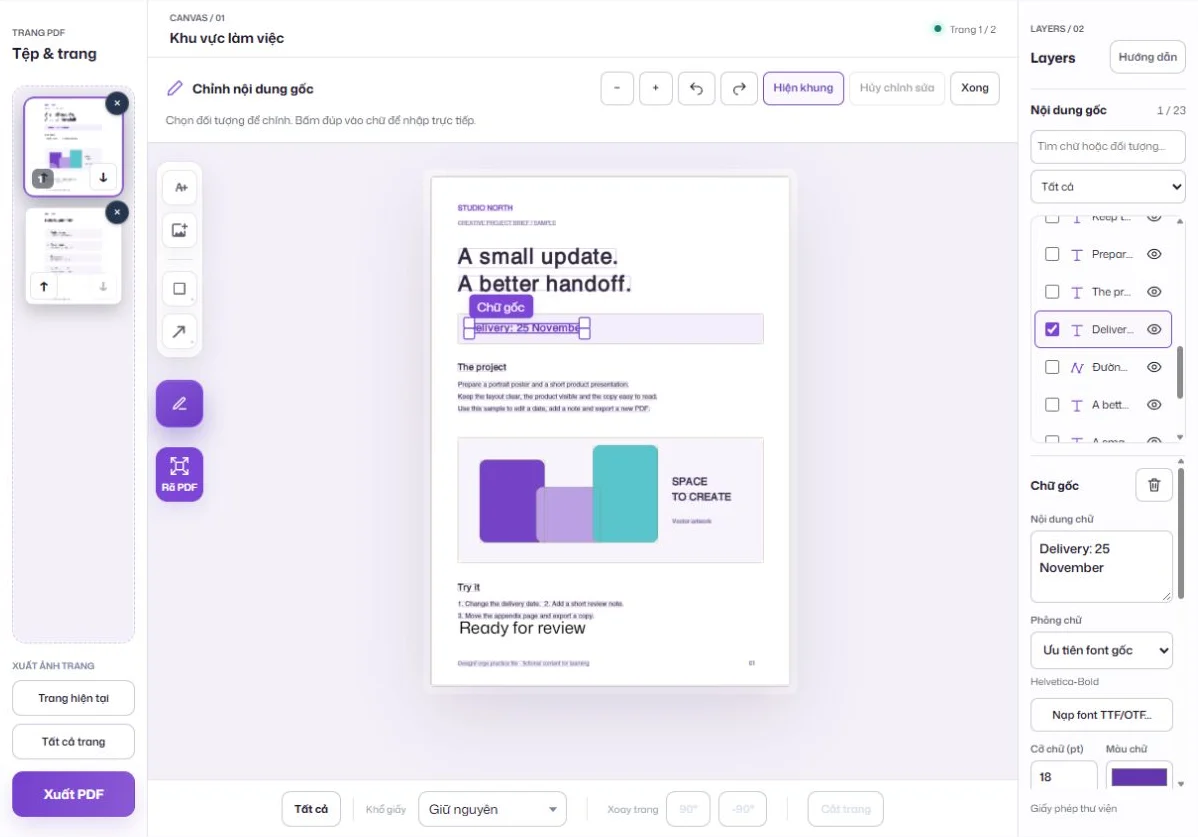
Delivery: 18 NovemberDelivery: 25 November
- Open a file and choose a page
Drop a PDF into the editor above, then click the thumbnail of the page you want to edit.
- Choose Edit PDF objects
Double-click text to type directly, or select its row in the Original content list on the right.
- Edit and apply
Change the date in Text content, then click Apply text (or Ctrl/⌘ + Enter). Choose Done to return to adding content.
New text does not push surrounding content aside. Keep it short or adjust the text box to fit.
Add content
Place a note, logo, shape or pointer on your page.
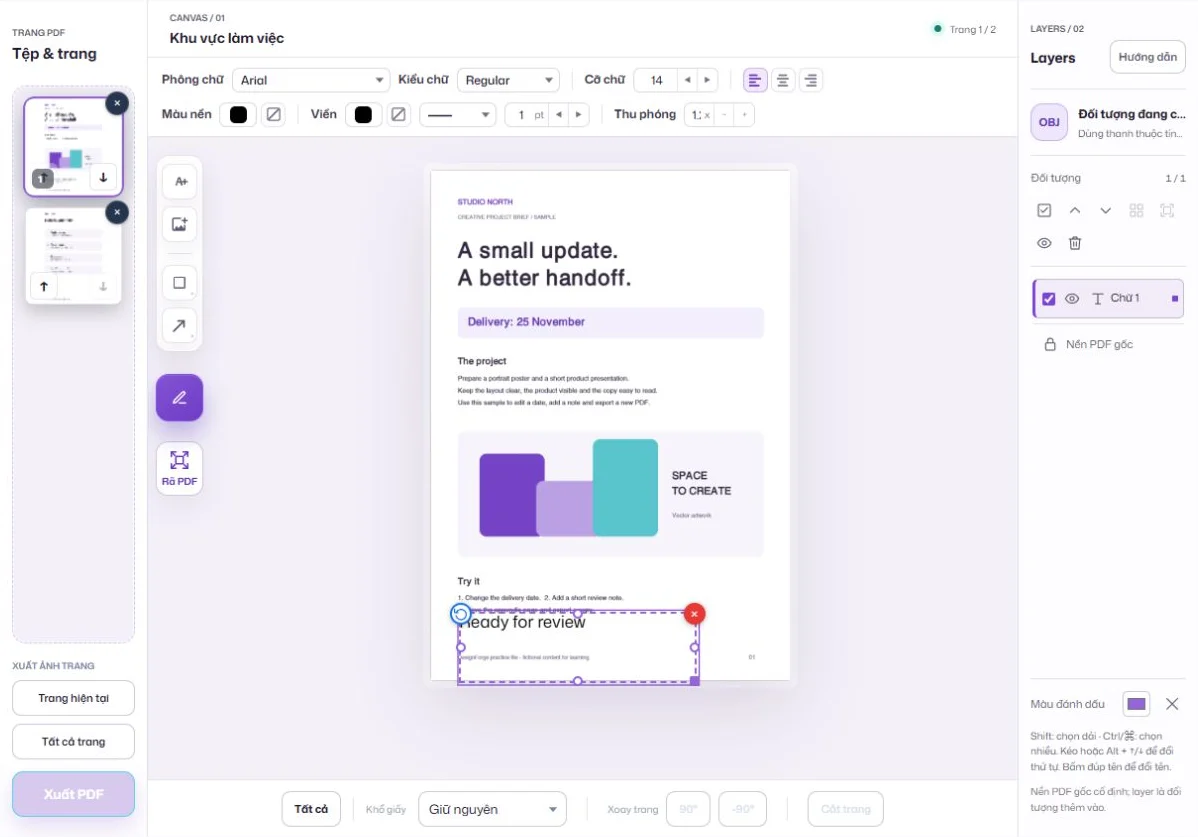
A page awaiting feedbackAdd “Ready for review” near the bottom
- Choose a tool
Use Add text (A+) for a note, or Add image for a logo or illustration. Shape and line tools sit just below.
- Type and position it
Double-click new text to type. Drag the box to a clear area; use its handles to resize or rotate.
- Refine with the properties bar
Change font, size, color or alignment above the canvas. Use Layers on the right to manage the objects you added.
A note is visible page content. For a field your recipient can type into, use PDF Prepare Form linked below.
Arrange & export
Reorder pages and choose the export that suits your handoff.
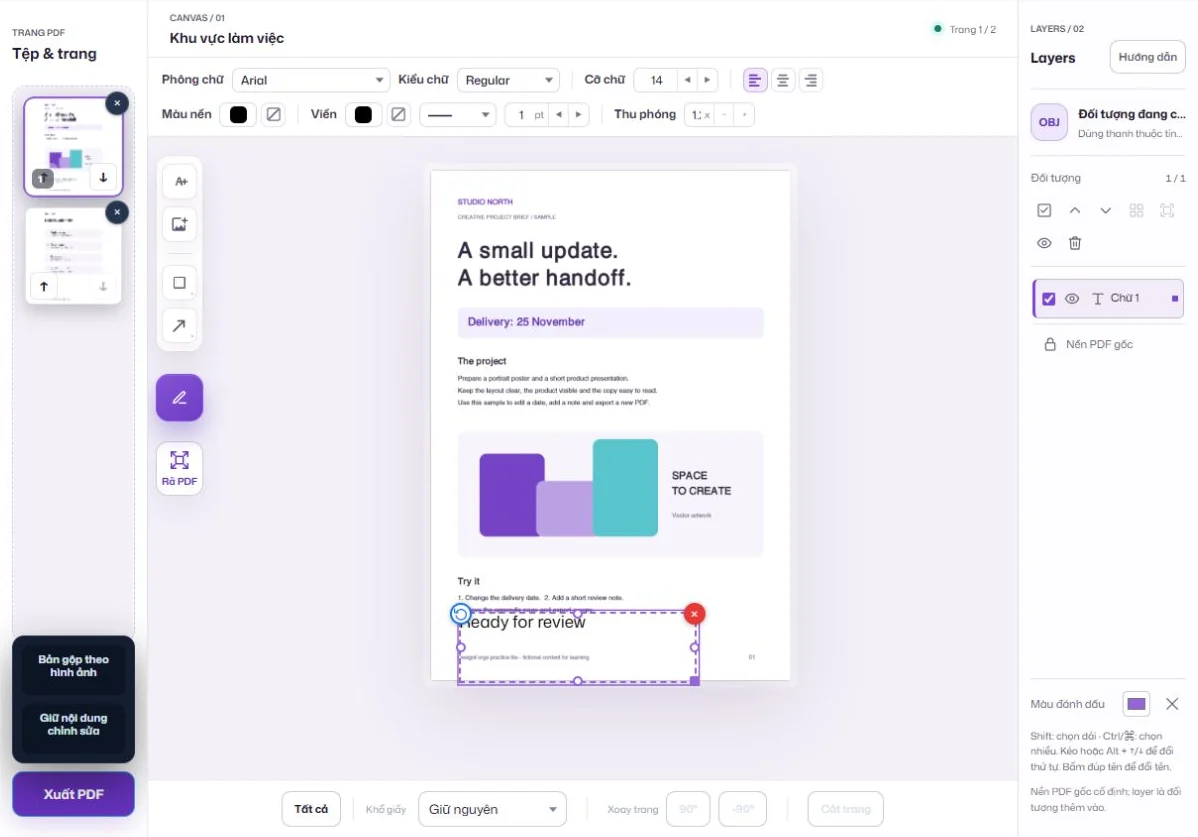
Your updated documentReopen the downloaded PDF to verify it
- Put pages in order
Use the up/down arrows below thumbnails, or drag to reorder. Rotation, cropping and paper size are below the canvas.
- Choose Export PDF and an output type
Flattened image copy turns pages into images inside a PDF. Keep editable content preserves PDF objects where possible, for further processing.
- Reopen your download
Check text, accents, images and page order. Keep your original separately so you can return to it.
A flattened image copy has no selectable text. Further editing in the other copy depends on PDF structure and fonts.
Having trouble? Check these 3 common cases
- Text cannot be selected in a scanned PDF
- A scanned page is an image, so Edit PDF objects has no original text to select. Use advanced text replacement for a small image area, then inspect the replacement background and font.
- New characters have missing accents or the wrong font
- In Edit PDF objects, try Noto Sans · Vietnamese or load a TTF/OTF font containing your characters. An embedded PDF font may only contain the characters used in the original document.
- You need major layout changes or fillable fields
- Major layout changes are usually easier in the original design file. For interactive input fields, use PDF Prepare Form; adding visible text to a page does not create a fillable field.